 Login
Login

⚠️ IMPORTANT UPDATE: CAM4 now discourages using OBS Virtual Camera with Regular Streaming mode due to stream quality issues and viewer connection problems.
If you need to broadcast on multiple platforms, we recommend using External Encoder mode instead.
Further information here: Regular Streaming
Virtual Camera Setup
-
Download OBS software from https://obsproject.com/download. Select your Operating System (Windows / MacOS / Linux)
Related Articles
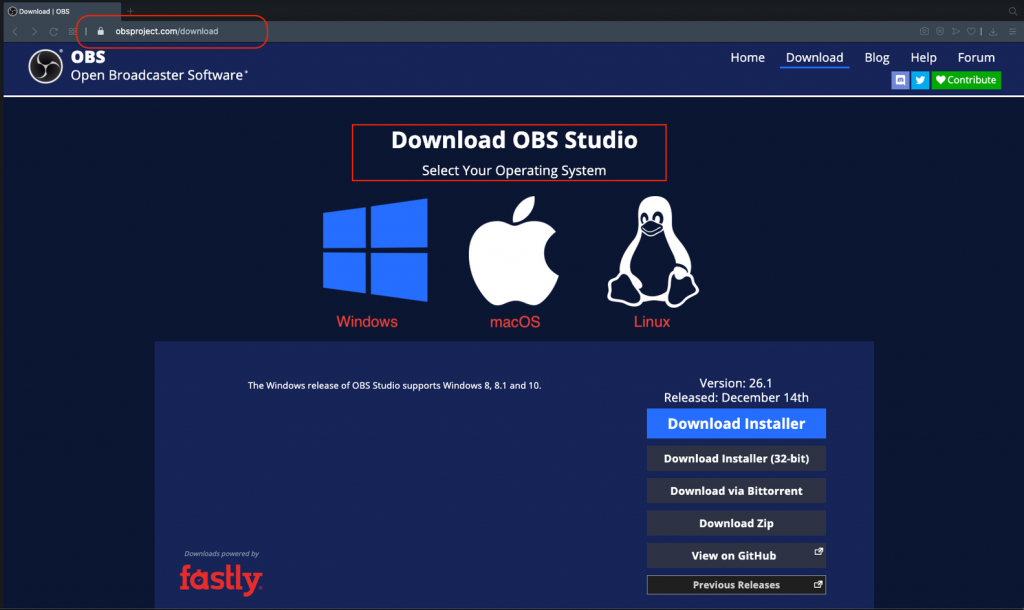
- Click on Download Installer
- Once the download is finished install the application
- Open OBS software
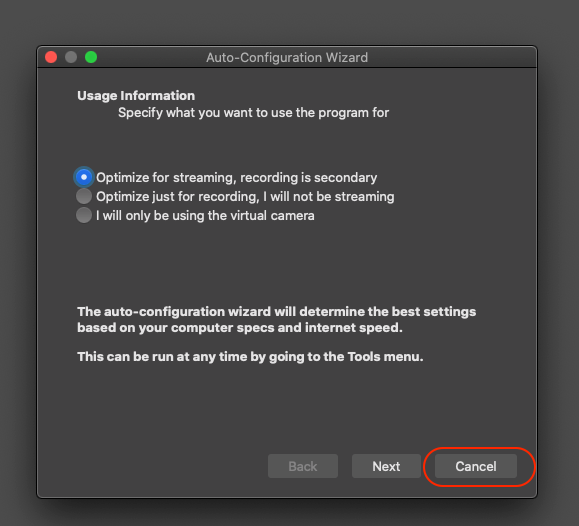
- The first time you Open OBS you will be asked if you want to Auto Configure OBS → Click CANCEL
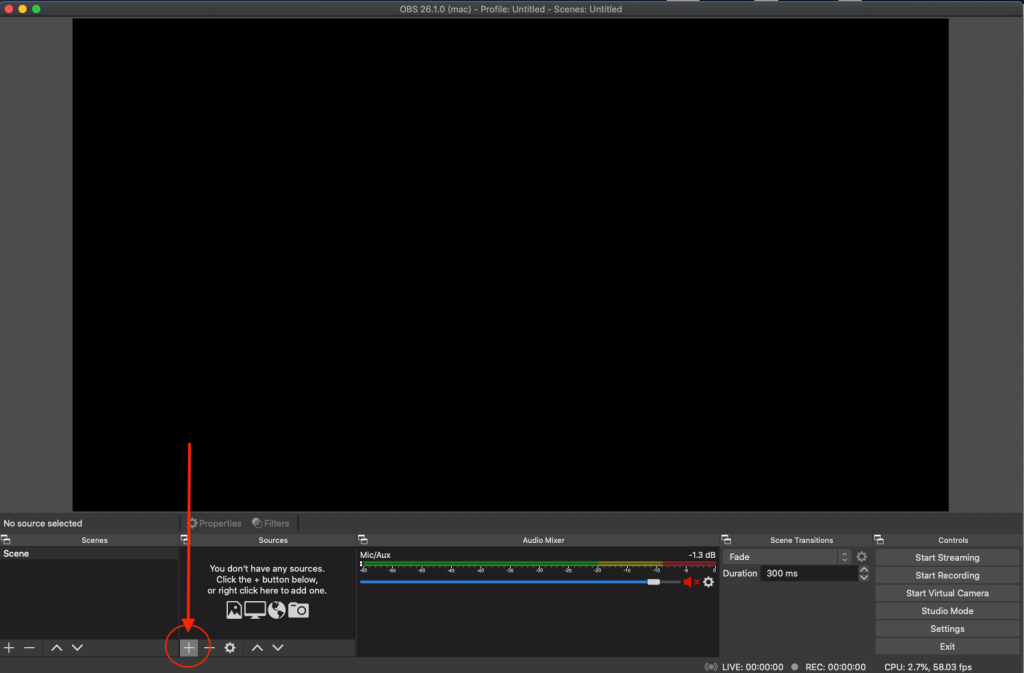
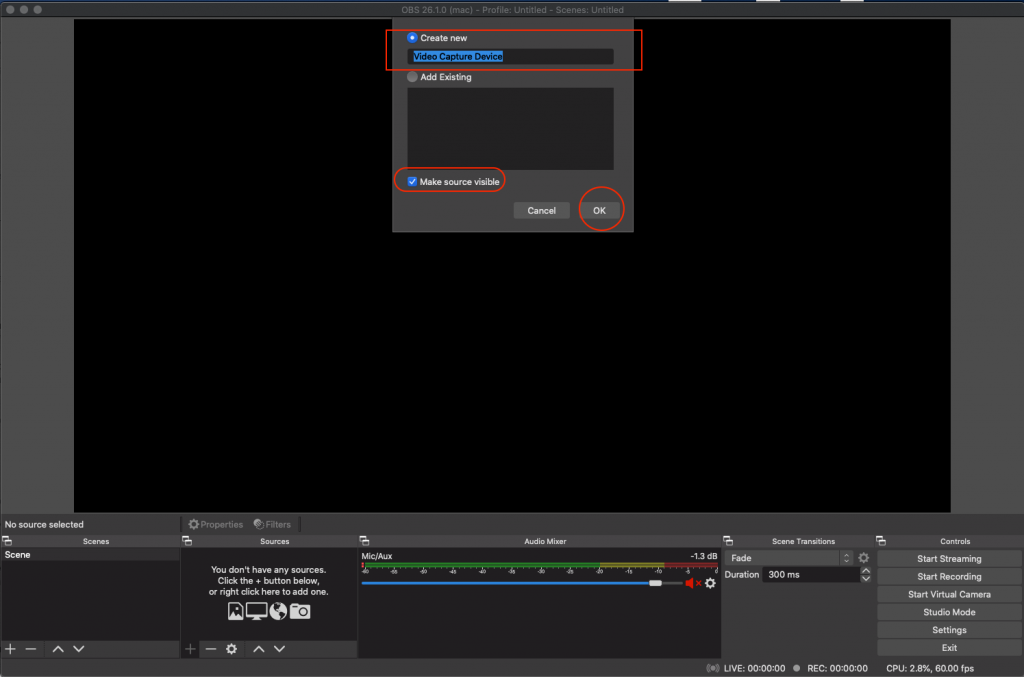
- Click on + To add a new Video Source
- Select “Video Capture Device"
- Input desired name
- Click OK
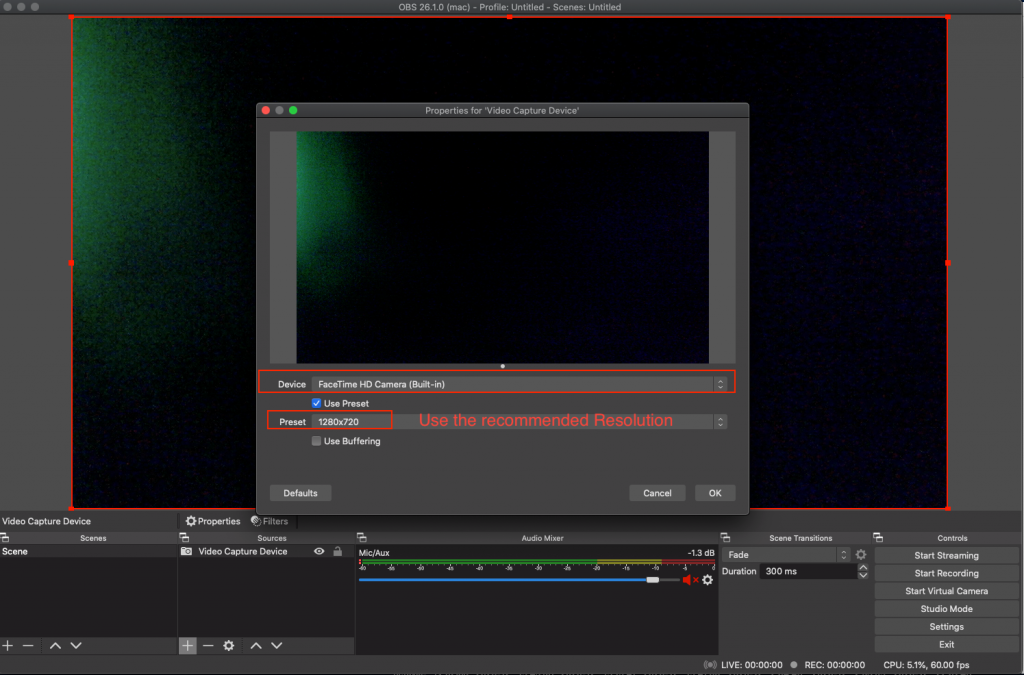
- Device: Select your desired Webcam (ex: Logictech C920)
- Check “Use Preset”
- Click OK
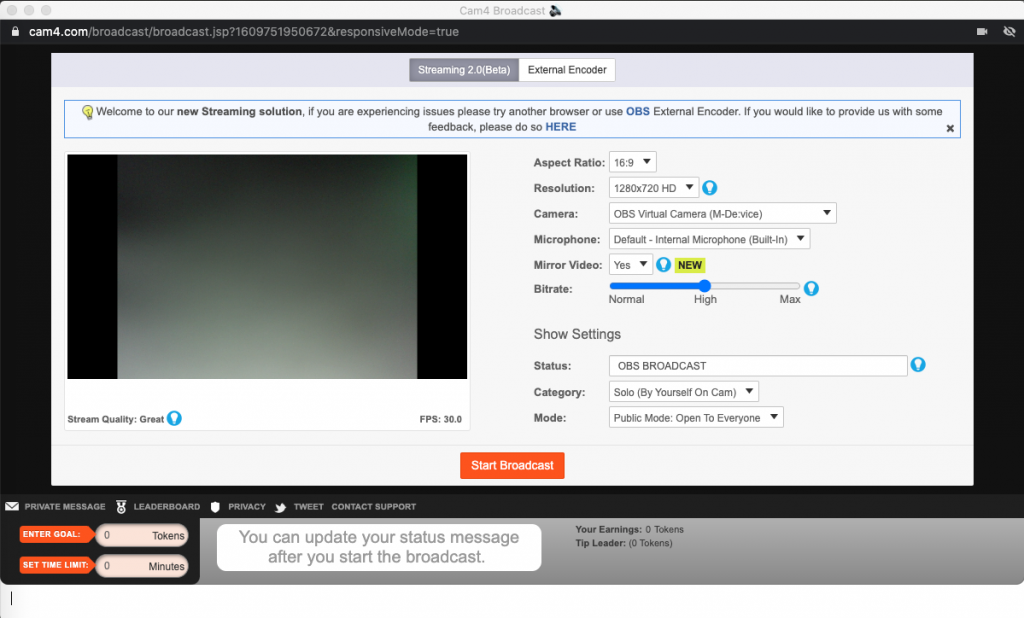
- Open broadcast window on CAM4
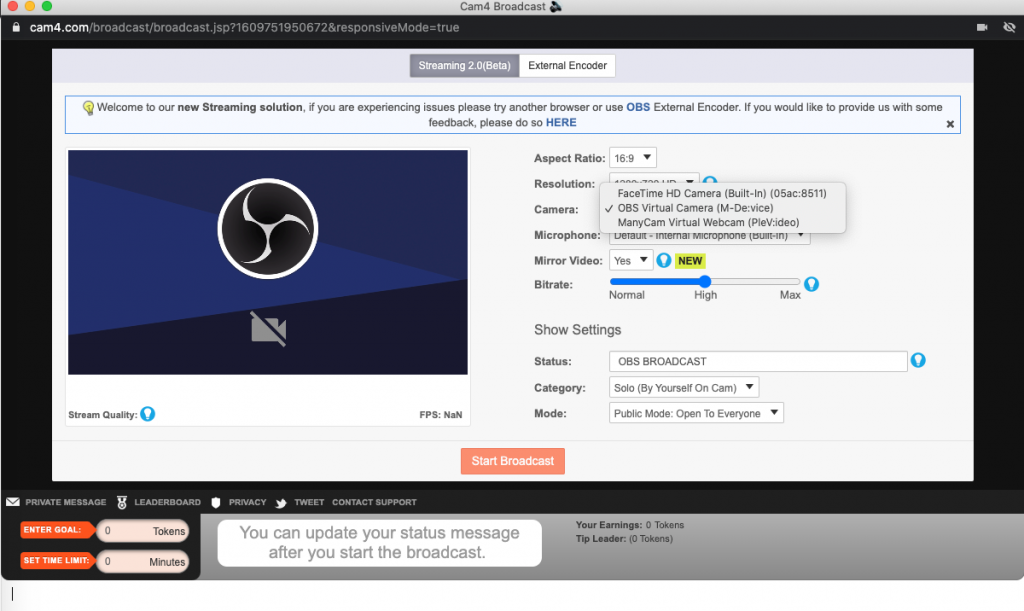
! NOTE: You may need to restart your computer to see the Virtual camera in the list
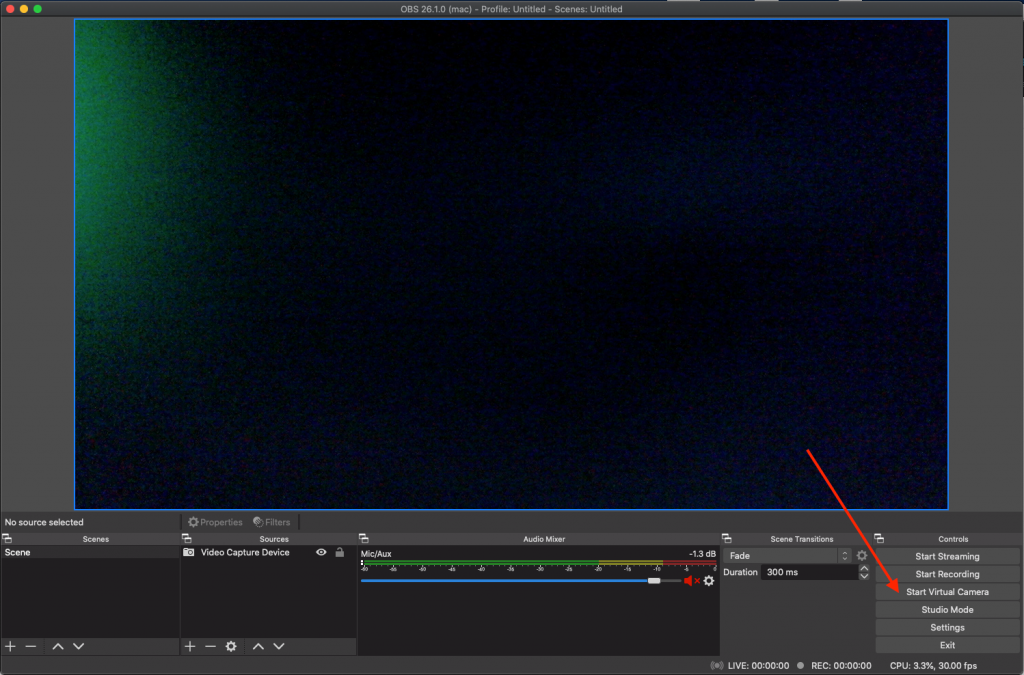
- Start Virtual Camera
- Select the OBS Virtual Camera from the drop-down menu in the CAM4 broadcast window